
 By
By For those of you that have purchased the iWeb SEO video from Rage Software this iWeb tutorial may not come as much of a surprise to you, however if you haven’t (why not? it’s full of useful iWeb SEO tips and tricks) you may want to pay attention. Regular readers of this blog may also remember my previous tutorial explaining how to get ‘header’ tags into your iWeb site, but it involved a bit of faffing about.
All that has changed with the release a few weeks ago of version 1.7.1 of the iWeb SEO Tool from Rage. Now adding ‘header’ tags to your iWeb site is as easy as putting a tick in a box!!
Why do you want header tags in your iWeb site?
Quite simply they help with your iWeb site’s SEO rankings. A search engine bot (or spider) will crawl your iWeb site looking at all of the text. It will read what keywords you put between your header tags and judge them to be more important than other keywords on your site, and because you have taken the time to put <h1> before your headers they must be really important.
The trick is not to abuse the header tag though. Do that at your peril. Each page should only have one <h1> tag and you should on no account stuff the tags with keywords. That will get you dropped like a sack of spuds.
So how do you add the tags to your iWeb site?
Open iWeb and go to the page you want to add the tags to.
Scroll up to the title of your page and, before the title add <h1>.
After the title add </h1>.
You can see in the image below that the title of this site is ‘Artist | Designer | Photographer’ and I have added the header tags around my title.

Repeat this for all your pages, save your iWeb site and then you can either publish to a folder (if you are uploading to your own host) or MobileMe.
Download and install version 1.7.1 of the iWeb SEO Tool. Once that is done open the application and open your iWeb site within it by selecting the correct method from the top left corner.

On the left hand side should appear a list of the pages within your site. You now have to simply click on the relevant pages one by one and then tick the box that tells the application to ‘Convert Header Tags in Textboxes to HTML Code’.
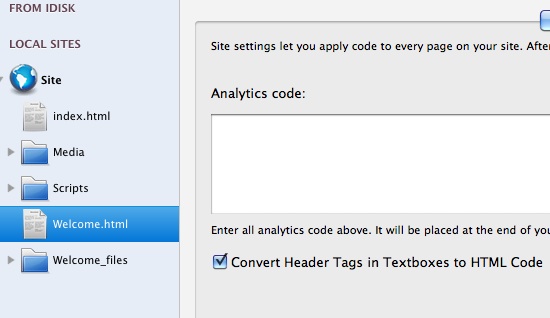
Don’t forget to apply the changes to each page as you go. Once done you can either upload via the built in ftp to the host of your choice, or if you elected to open an iWeb site from your iDisk you have finished.
You now have header tags in your iWeb site. Your site won’t look any different of course, but you can check by loading it a browser then right-clicking (CTRL-click) your mouse and selecting ‘view source’ form the drop-down menu. Scroll down a bit and you should see your title surrounded by the tags.

Of course if you wanted you could add a sub-title to your main title with more keywords in it only use <h2> rather than <h1> at the beginning and end of the sentence.
Have you added title tags to your iWeb site? How easy did you find this method? Leave a comment and let us know.




 Loading ...

Tim,
So if I had the and tag in all my titles they will still look the same? It’s great news but also bad news for me I have around 250 pages on my site and it’s going to take me a while… 🙂
Thierry
Thierry,
Depending on whether or not you have a serif or sans-serif font they should look the same, hence my second tutorial. Good luck with so many pages though.
Tim
[…] Originally posted here: How to do Header tags in iWeb | All About iWeb […]
hi tim – i am a little confused. are header tags and title tags the same thing? and if they are does that mean that in the iweb seo tool we no longer have to fill in the title tag for each page?
thanks so much from shana
Shana,
No Title tags and header tags are 2 different things. The title tag controls what appears in the bar at the very top of your browser. Header tags are used as a way of highlighting text on a page (ie paragraph headers). Search engines rank them all in order of importance ie H1 is more important than H2 and they are all more important than P (the normal paragraph tag).
I hope that helps.
Tim
I tried to do this, I’m on 1.1.2 old skool style, and the / is not allowed in the title page? I even tried to cut and paste it. Any ideas? Thanks in advance for the time and effort.
Michael
Michael,
Try deleting the title text-box and creating a new one with the code in.
Tim
Does any one know why when I change the font family in the code, it seems to default to a Times font? Bummer.
I love this tutorial. I am having an issue with the text not retaining its location after adding the tag.
Jonathan, I’m having the same issues. Gosh golly darnit.
Tim, just want to say THANK YOU for all this great resource! This is a wealth of information in one stop! I am learning so much from this priceless site!
Thank you again!
Wonderful thank you, I have been using other editors but for a simple site iweb is the best.
I have a huge problem with site verification using iweb (Google) and so are many others.
Can you tackle this issue PLEASE PLEASE PLEASE,God bless you and keep up the great work.
It seems that iWeb SEO Tool does not allow us to pubish a single page. I am trying to see if this h1 tag method works, but SEOTool wants to spend 20 minutes uploading the entire site when all I have changed is one page. Is there a way to upload only the pages we change?
Where should I use the tag on this site: http://www.justinmasonconstruction.com
Most of the time, my main header is actually a graphic, so would you label the graphic as the or make the subheads the .
Kristy
You don’t have to use Header tags in the header section of your iWeb site, you can use them anywhere. If your header is an image however, make sure you give it a suitably SEO friendly name rather.
Tim
I also had an issue with the text not retaining its location after adding the tag. I dealt with it by duplicating all my iWeb header text boxes, applying the tags to the duplicates and then sending each to the back of their respective pages so that they are effectively masked by the (black) background. I then applied the SEO tool as usual and uploaded. This allowed me to keep the original format of my headers but also have html friendly ones on the page.
Hello i from the beginning delete anything on the new blank page, also the title text box. (my mistake) so i cant set the header tag. now i have a page with more than 100 sites.. i want to set in any page the header tag, but how i can get it again even i delete it?
Sorry, I am confused : ‘scroll up to the title of your page’ – what does that mean – what is the title of my page? My website: http://www.ecogreenliving.com
Where do I type in etc..? On the left bar of iweb or as an html snippet?
Thanks!
So how do you add the tags to your iWeb site?
Open iWeb and go to the page you want to add the tags to.
Scroll up to the title of your page and, before the title add .
After the title add .
Hi! Your site is awesome – terrific tips and tools!
Just a question – I have done the iWeb SEO tool and other things to optimize my site, but I am hearing from other internet business people that WordPress is much better for SEO, and that iWeb does not get indexed properly and is not effective as a business site.
Any thoughts on this? I love iWeb and would like to continue using it, but am building an affiliate network and online products and have to have the best SEO.
Thanks so much and have a wonderful day!
:o) Tara
Wow, excellent tip, I am going to try that as soon as I get home from work today. I have been trying to work on something new as I have been using wordpress too long & decided to try iWeb. Thanks for the info!!
instead of using the Rage tool to convert to HTML, could you insert an html snippet with the correct code for headings?
When I publish my site to a folder, and then open IWEB SEO it doesn’t show any of the pages. I can’t seem to view any of the pages in SEO. I don’t know why it won’t show up but it just doesn’t.
Thanks for your help.
Applying header tags in Iweb as stated above but it’s not publishing without changing the font and shifting other pieces of the page around. Has anyone tried sending the header tag to the back layer so that it isn’t visible but still works as a header tag for the search engine robots? Thanks in advance for the help.
Hi there,
Please please help me! I’ve created my website http://www.trufflepr.com but I’m having real problems. I think when I created each of the pages but I think I deleted the original header/title boxes. I’ve also hidden the Navigation Menu. Is this important at all?
I am so confused. I’ve looked at other forums which haven’t helped and have done all sorts of things including inserting an HTML snippet with Java script and moved it around the page because I’ve heard that the position of the HTML snippet affects the page title. I just want it to come up so that when people search for Truffle PR it comes up as “Truffle PR is London’s top public relations agency for clients in the consumer and lifestyle sector” rather than just “Home”… any help would be much appreciated!
Thank you, Ellie
Let me get this straight, do I put the header tag directly on the page on either side of my page title and then then when I publish with rage sep tool and check the convert to html it will make it dissappear ?
I figured it out, I placed the tag with this Keyword phrase in a text box at the top of my i-web page,
then I added this code at the top in the head code/google analytics window in Rage SEO tool and it made the code disappear, very cool, this self taught web designer showed this to me at a coffee house, amazing!
Did not work for me at all.
All texts became chaos…