
 By
By Having a large image or photograph as background is very ‘in’ at the moment when it comes to modern web design. A problem arises however, when you try to achieve this style in iWeb. Inspector only allows you to set a tile or centered image that will move when a user scrolls the page. This obviously isn’t what you want when you have your most beautiful image as a backdrop for your home page.
To get round the problem all you have to do is a tiny little bit of code editing (and I do mean tiny) before you publish your site and you will be able to keep the background of your iWeb page static whilst scrolling the content.
One of the more painful decisions you will have to make is which image to use and how big to make it. Obviously different people have different monitors – yes the world would be a better place if everyone owned a new 27″ iMac!
Using an image that is too small will result in white lines to the bottom and right of the background image depending on what size resolution your site visitor has. If the image is too big then obviously it wont all be seen. I personally would use an image that is roughly 2000px wide by 1200px high but you don’t have to stick to those measurements; testing is the key!
You will now have to select an iWeb theme that is ’empty’ such as White. The reason for this is that some themes have a separate image for the footer section of a page and so setting the page background to ‘none’ as you will see, will still leave an image in the footer (try it on Darkroom and you will see what I mean).
So, as I mentioned above, choose the White theme and open ‘Inspector’. Set the page background to ‘None’ and the browser background to ‘Image’. Browse to where you have saved your image and select it. If you have used a suitably large image you don’t have to bother about setting the tile option, but if you have any doubts go on the side of caution and select ‘Tile’.

Once you have completed adding all of the iWeb page’s content you now have the option to either publish to a folder (or MobileMe) as it is or to make the content stand out a bit more, add a shape from the shape menu behind all of the content and make it transparent in Inspector. I recommend using a setting of less than 50% . It is not necessary to add the shape and in reality will only serve to slow down the loading time of your iWeb site, the choice is yours and depends entirely on what image you have set as your browser background and how legible your content is.
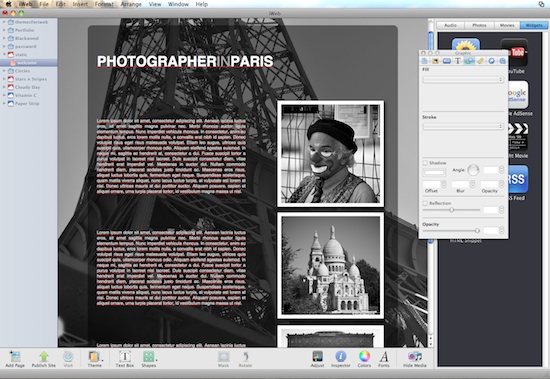
By now you will have (either with or without a transparent shape) an iWeb site published to a folder, be it on your hard drive or on your iDisk.
It’s now time to start editing the HTML code so navigate to the folder on your hard drive (or iDisk) where you published your iWeb site. Find the first page you created in your site and right-click (Ctrl-click) on it and select ‘Open with’. Then when the drop down list of applications appear choose your HTML editor of choice.
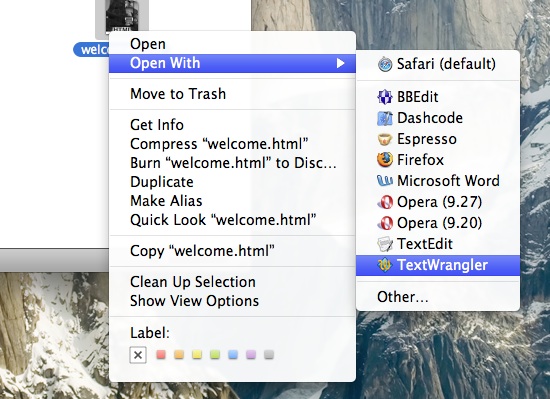
Once again I recommend the free application TextWrangler from bare Bones Software.
Select Cmd+F on your keyboard and enter ‘no-repeat scroll’ into the ‘Find’ window that pops up.
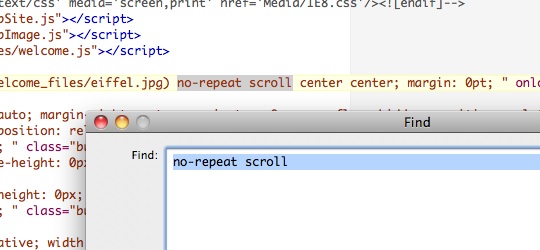
Hit return and the phrase ‘no-repeat scroll’ will appear. Now all you have to do is replace the word ‘scroll’ with ‘fixed’. That’s it.
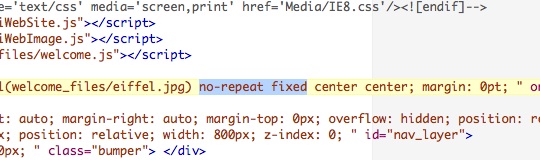
Do that for every page on your site and then save everything. You can now publish your site to your web host via FTP, or if you are a MobileMe user you have already finished.
Visit your web-site to check out the new non-scrolling background. I personally think this is a fantastic technique for photographers or artists who wish to display their work, a different image or photograph on each page would look stunning.
Have you used this effect on your iWeb site? Leave a comment and let us take a look.





 Loading ...

[…] Read this article: How to make your iWeb sites background static | All About iWeb […]
When you are finished making all the changes to the site and to every page, you mentioned that we could use ftp or mobileme to publish our website.
How? I have mobileme. do i launch iweb again and click publish, or do I click something in idisk??
Jackie,
If you have MobileMe, don’t publish to a folder. Publish as normal then find the folder on your iDisk and make the changes to the pages there. There should be a ‘Sites’ folder on your iDisk that contains your iWeb site.
Tim
Im really new to mac where do i find the “folder on your hard drive (or iDisk) where you published your iWeb site.”
Paul,
It depends where you saved it. By default there is a folder in your home folder that is called sites and it should be within that one. On MobileMe there is one called sites too I believe.
Tim
dah its alway under your nose thank you i will trying to do the above hint.
This is great and simple to do it. Thank you!
Hummmmm, Text wrangler can’t seem to find the text that you say to look for on any of the pages on my site. I am publishing to a folder because that is how I publish it with Dropbox. Is that the problem?
been playing arounfd with Iweb 3 and wanted to figure this out, this was very helpful. Views great on my mac on a couple of browsers Now wondering how to scale this so it displays coorectly on pc’s and other computers whcih is doesn’t quite fit. is there a code so that it “scales” correctly. be great to know this.
When you update the site, do you have to go back and readjust scroll to fixed every time? If so, is there a fast solution for that?
thanks so much.. now the next challenge is to see how to get a transparent iframe 🙂
i did it and it worked ! but the problem is that each time when i make some changes in my website i have to do the same thing :S
i have so many pages and i can’t do this for all pages
any solution for this ?
Sadly that’s iWeb for you. You can use CyberDuck FTP which has selective upload so that you only have to upload changed pages to your web-site. That should mean that you won’t have to edit every-page each time.
Great, this is exactly what I was looking to do!
Is there a way to make the page dynamic? I have a discussion board on one page, so the page length obviously increases with every post. Still want the background fixed.
I’ve found a good solution for this problem which is using Mass and Replace it ( Free software )
u have to configure it once and it will do the job for all pages that u select them. The good thing is u can save this configuration so that u can use it later after u republish the site again
🙂
Hi. Thanks for the info. Very basic computer user here. Have got as far as changing the html and the html files (where I published to) are working and the image is static. Great. But I can’t figure out how to get these files from the folder on the desktop onto my website. I don’t use mobile me but publish to ftp server – don’t know how to do this without iweb. Thanks for the help so far. Would appreciate any advice (in very basic terms!).
Thanks again. Dan.
This didn’t work for me. I want the homepage to have browser pic so I changed the ‘no-repeat scroll’ to no-repeat fixed’ on the home html file. didn’t change anything else because ‘no repeat scroll’ wasn’t on any of the other pages. Does it not working for me have anything to do with the index html file not changing also? What should I do? Thanks.
the website i was talking about in the above post is http://www.colorsmithdesign.com
i want to extend the color bands across the browser page.
thanks.
is there any way to have those images constantly changing in the background?
Hi,
Thanks for the info. I have one question.
I have made the changes on my published to a folder files. And now, how do I make those chenges to work when I Publish my iWeb site again?
If I click the file of the folder to see the changes, It works, but in my published web it does not works?!!?
Help please…i am stuck…
will this not be affected by the iweb built in algorythym that overrides all new edited code?
please let me know
http://www.pwilletts.com
paul@pwilletts.com
Paul,
No, as long as you publish from an FTP app. Of course you will have redo the static page each time you update iWeb, which is a downside to many of the code editing things in iWeb.
Tim
My website is: veranasummers.tk. How do I get the browser background to scale to the fit of the size of the user’s browser’s window size? It is a bit hard to explain, but I want it to fit to large screens and to small ones. Please let me know if you can help. I tried what you did in the post, but all it did was disable the scrolling and part of the background image got cut off. Thanks!
Great tutorial!! I only ran into the problem that “no-repeat scroll” wasn’t found, because it was actually just “repeat scroll”. But it worked anyway! I’ve seen this technique on quite a few sites I visit. Thanks again!
Thanks for the help with this, Is it possible to have the same background image on every page without it needing to refresh the background every time you navigate to a different page?
thanks! looks good in safari but the background shifts upward when viewed in iphone/ipad. any thoughts?
im trying to make the transparecy screen over the background but its not working and when i type in no-repeat scroll it dont come out. when i just type scroll this is what comes out repeat scroll. i tried no-repeat fixed and repeat fixed but it still doesnt work..
Hi Tim,
your site is immensely helpful and an absolutely fantastic tool. I’m starting up a business at the moment and don’t know what I would have done without some of your posts.
Just wanted to let you know that I’ve just stumbled on your post on a different site: http://allabouttipstricks.blogspot.com/2011/01/how-to-make-your-iweb-sites-background.html#comment-form
Keep up the great work!
Hi Tim,
Sorry about the last reply. Please remove it as I hit the wrong button. Thanks.
Like I was trying to say, there are 3 things preventing me from being able to publish in iweb.
1) How to change the font of the navigation menu so that I can use a blank page. I don’t like the font in the plain white template.
2) How to use a flash object: http://www.deangelisensemble.org/ is a site I made in Dreamweaver and would much rather use iweb – that movie at the top requires a flash element. How do you make that work in iweb?
3) How to remove a photo album and any remnants of it’s code in iweb. I would settle for iweb’s pre-made template over question #1 up there if it would be possible to completely remove the photo album since I don’t need an album on every page.
Thanks so much!
Is there a website I should be going to for tutorials on iweb that is as comprehensive as yours for things like this?
Thanks again,
Laura
I just wanted to know something. When I publish it does not show up in my sites folder. I use Mobile Me and I just click publish but it doesn’t save there. I don’t know how I can get my new fixed-background site to work.
Hi Nico,
How are you publishing your iWeb site?
Tim
Oh I figured it out. I was looking in the wrong spot! Instead of looking in the iDisk folder, I was looking in the icon on my desktop. Thanks for the help though. This site is really useful.
Hello Tim,
Thank you so much for the tutorial. Unfortunately, it didn’t work for me. I made all the changes but the site stills rolls the background and it loads a little slow.
Here is the link to the website. Any suggestions will be greatly appreciated.
http://www.ourlighthousechristianchurch.com/Ines_Files/Home.html
Thank you,
Ligia
Hello,
I have tried this but can’t find the ‘no-repeat scroll’
I did al as you said, found the file which was named domain. Imported it in textwrangler but can’t find the text.
Could you help please.
thank you1
Hello,
First of all thank you for the info! I have managed to make it work when the site is published on a folder on my mac but then i am trying to publish it to an FTPserver and doesn’t work what should i change?
thank you very much
waiting for your response
Not sure, you’ll have to give more details about what the problem is. What is “not work” mean? Do you get an error message?
Thank you for this tutorial was a very helpful.
You can have a look at it on my website http://www.gttouch.com.
Also i have a question: I’ll email it to you, avery interesting idea!
Thanks again 🙂
I used this technique with a site I was making for a friend and it worked perfectly until I tested the site on my iPhone 4S, and it doesn’t hold the background in place on the iPhone. Any ideas how to make it stay on the iPhone also?
I have a question… I was able to follow the steps and edit the html in text wrangler, but i publish to an ftp server, so do i need to edit the html through that? or can i upload it to the ftp after editing it myself with text wrangler?
Thanks for the help.
– Tim
You have to make the changes each time you publish because iWeb overwrites any changes you make outside of it.
Question… It all seems rather easy, however…. I use 1and1 to publish my website. Does that mean my files are with them, and if so… how am I suppose to access them? Sorry, I just have no clue what I’m doing, and there is only one thing in my iweb folder. It says “domain”, and when I click on it… it brings me back to iWeb and has my website pulled up. :/ Right where I started from.
~S
K… I figured out that I needed to set my mouse up for a right click… ha. But now when I’m at the finder window… I entered the phrase- no repeat scroll. But it won’t let me “find all” or “next”. None of the buttons on the right are clickable(if you will). So… stuck again. No clue. Sorry. Any help would be appreciated.
~S
Hey, thanks for that great tutorial. Its so simple when you know how it works 🙂
One thing doesn’t work correctly in my IWeb. I have a longer text and I need more than 600px high. The background pic jumps now in the middle of the high. So I have a white “bar” on top. Same if you write more down without changing the high. Do you have a hint how the background pic stays on top?
Thanks Klaus
I was talking to my teenage son about how I loved those static background websites – and bang Ive done it. You’ve just gotta luv allaboutiweb! SOOOOOOO simple but SOOOOOOOOOOO effective. This is the best thing I’ve learnt about iweb all year.
I upload test webpages to dropbox (no hosting fees!) If you would like to take a peak at the test webpage I created copy and paste the link in your browser
https://dl.dropboxusercontent.com/u/5924786/localweb/BeachLife_2.html
Thank you. You’re fantastic.