
 By
By 
If you are anything like me, you wish that the iWeb sites navigation bars were more user friendly. By that I mean you can move them or change the links within them to name but a few. So after a bit of a play about with my tester site I came up with the following solution. Not only do I think the results look better, but they are far more customisable.
Having good navigation on your iWeb site is paramount when it comes to accessiblity for your users. Not only that, but if a visitor to your site can’t find their way around easily they WILL leave. There are plenty of other sites on the internet that have good navigation, why should they waste their time on your site struggling to find their way around.
iWeb contains all the tools we need to create our own custom navigation bar that we can place anywhere we want on the page. Not only that, it will be accessible and browser friendly. Additionally this method allows you to create a nav-bar with names of the pages that you want whilst giving the pages more SEO friendly names.
Creating your own nav-bar.
Open iWeb and create a new page. I like to duplicate my Home Page so that I know a rough layout of header images and text.
Insert a text box into the page and place it in the rough position of where you will want it to appear on your pages.
By now you should have decided which pages you want to link to on your site, so type the names of those pages in the text box each separated by 5 or 6 spaces (or more if you like).
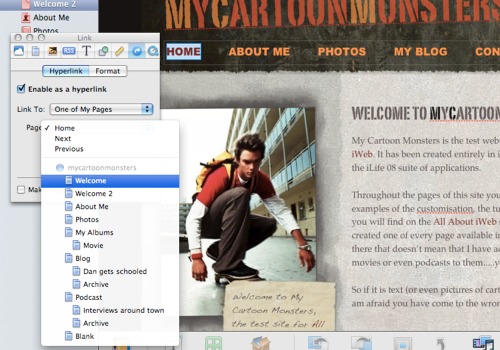
Now you have to open Inspector and individually link each word to its relevant page in your site.
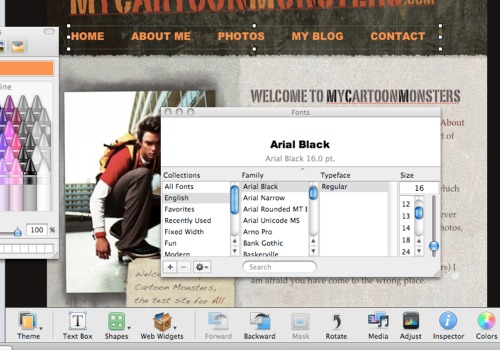
Once you are happy with the links, make sure you are happy with the chosen font, the size and colour of the text and position of your new nav-bar.
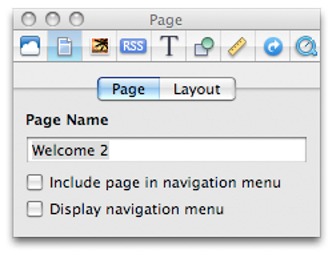
Before inserting this new nav-bar into the rest of your pages you must first make sure that you have DESELECTED the ‘include this page in navigation’ from the Inspector from all the pages on your site.
All you have to do now is select the text-box and copy/paste it onto all your pages. If you want a coloured background to your nav-bar or a different style border you can open Inspector and, using the Graphic Tab (sixth along from the left) change the settings of the text-box until you get a style you are happy with. You can add fills, change the border, apply shadows, blurs or transparency….play about with it.
To improve accessibility on your iWeb site it is always a good idea to have some text based links to your main pages at the bottom of each page. That way, visitors to your site who have their browsers security set to the highest level still have some means of getting around your site.
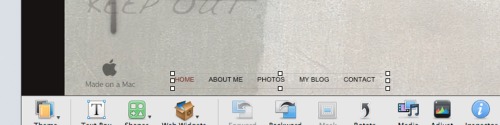
Just duplicate the nav-bar you created initially but remove all the formatting. You need nice small plain text in a universal font (such as Arial). Then just cut and paste as before. Not only does this improve accessibility (as I mentioned above) but search engines find text linked sites easier to crawl.




 Loading ...


Hi Tim
Nice site! I think the big flaw with iweb is SEO. from what I can see they’re selling a car without wheels. What use is our cycling club site if prospective new members can’t find it EASILY by searching cycling clubs West London etc. Might be a subject for you to do something on. It appears that a lot of iweb users are scrabbling around for simple unambiguous information on iweb SEO.
best regards,
Danny Pollock
typo fixed
Done! Looks great. Now I need to change the color or my template to match my new nav-bar. Thanks for the information. Definitely subscribing. typo fixed
There is an iWeb SEO Tool (http://www.ragesw.com/products/iweb-seo-tool.html) you can use to edit the meta-tags and descriptions on each of your iWeb pages. That along with Google’s free webmaster tools (http://www.google.ca/webmasters/tour/tour1.html) should help you build a more SEO friendly iWeb site.
Hope this helps.
Sonny,
Thanks for your comment. Indeed there is the iWeb SEO Tool; it got a mention on my iWeb Add-ons post on this very site http://allaboutiweb.com/index.php/2008/11/iweb-add-ons/
amazing.. thank you so much!
Hello webmaster
I would like to share with you a link to your site
write me here preonrelt@mail.ru
I’m having trouble with my navigation bar moving everything down in my website. I made it vertical by using the text box and creating hyperlinks, but it won’t let anything beside it? :-/
Dominique, You need to hold the ‘Cmd’ button down while dragging the other items around your page. By making your nav-bar vertical you have in-fact increased the size of your iWeb site header. Pressing the Cmd button will allow you to add things to your header.
Hope that helps,
Tim
Hey Tim
Any idea how to remove the tooltip yellow box that appears if my cursor is on the hyperlink for a few seconds ?
Cheers
Em
How can I design my Nav Bar and use it in my blogs? Do I have to copy it for every entry or is there an easier way?
Thanks
Tuti,
Thanks for your comment. I’m afraid you will have to copy/paste your own nav-bar for each blog entry you create. It’s either that or use the default javascript one and don’t get indexed by search engines.
You could always go to the entries section of your blog in iWeb and right-click on the previous entry then select ‘Duplicate’ from the drop down menu, all you have to do then is overwrite the text.
Hope that helps,
Tim
How do you have the nav bar, but then have different names of pages that appear in the top of your browser when you view the site. For example, my first page is called Home in the nav bar, but when I change it in inspector to what I want it to appear as in the top of your broswer when viewing online, it also changes the nav bar to that name.
Am I doing something wrong?
Cheers,
Andrew
Andrew,
The quickest and simplest way to change the title of the pages without changing the names in the Nav-Bar is to use Rage’s SEO tool. It is free to download and easy to use. All you are changing is the tags.
I hope that helps,
Tim
So in reality you haven’t made your own custom navigation bar you just made a text bar with links. What would be really useful is directions on how to actually replace the navigation bar with a custom one.
Thanks for your comment. Yes you do make your own nav-bar. It looks the same as the nav-bar iWeb makes for you but it is search engine friendly and more accessible.
Hi I’m creating a web site for a friend on a budget. I’m somewhat a rooking. I’ve created my own nav bar and what wondering if there’s a way to create drop downs from the navigation bar? Also I’d like to implement Twitter and RSS feeds to each page. Since each page is a different “catagory” does Twitter and RSS auto-magically do this for you? Thanks for any guidance.
Grasshappa
Salve, complimenti per il sito. Volevo chiedere qualche consiglio per ottimizzare la visualizzazione di iweb di un sito che ho realizzato. Il cliente mi dice che è molto lento nel caricarsi. Grazie perchè non so come riselvere il problema. Enzo
I am wondering the same thing as Brian, Is there a way to create drop down menus from the custom nav bar I just created? As well as I too would like to implement Twitter and RSS feeds to each page.
Thanks,
Joanna
http://blingithome.com/
So how do you add the background images from the iWeb nav bar to you text bar? You know, the images that highlight the page you are currently on.
Hey, when I set the hyperlink to each of the word its automatically underlines it and turns the text a dark Grey color. Is there anyway I can change that? As it makes it look crap!
I find your site extremely helpful as I am a complete novice at all this! Thanks!
This is great!
how do we get rid of the original navbar?
Brilliant. I was stuck, menu help didn’t help much. Thank you! Do you know how to remove a top colored box on the very top? It appears on each and every page. Also, can’t find a way to change the color of hypelink font.Thanks again!
Thank you so much for the above, it really has helped shed light on my early forays into building a web-site using iweb and how to get the most from the software. If you have the time I’d be grateful if you’d be able to let me know if there is a way of removing the underscores that appear with any text link?
Thanks,
Simon
Hi. Thanks alot for this wonderful nugget. It’s really great to have control over the navigation of your site.
I want to know if there’s a way to change the Text settings of the name of the page which is being visited? like in the original navigation bar, the name of the page becomes BOLD when i open the page. how can i inherit that property in the custom made navigation bar?
Thanks,
Ritesh
How do I remove the “underline” under each of the words in my navi-bar?
imacsolutions.com –
scroll down to meta tag generator –
copy paste html into html snippet in iWeb.
Will this work for iWeb webpages to generate meta tags increasing SEO?
Thanks, guru.
Pam
Question: i have images on a second page of my site (“artists”) – is it possibel thru i web to have those photos “highlight ” (like pull forward – get bigger) – you know what i mean? when a user navigates over the photo…..does this make sense? ha
Ive made a custom nav bar but i would really like to know how to add a drop down menu to my “porfolio” button without changing the whole style of the nav bar.
I have been reading your weblog for a while and thought I would fully pop in and drop a friendly note. . It is great stuff indeed. I also wished to ask..is there a technique to subscribe to your website by way of email?
I would just like to say … THANK YOU!!!!!!
Hi, when creating text into hyperlinks to form a navigation bar can anyone tell me why the text Is blurred when published?
James